


Chromagic 1.1
ChromaKey software made easy!
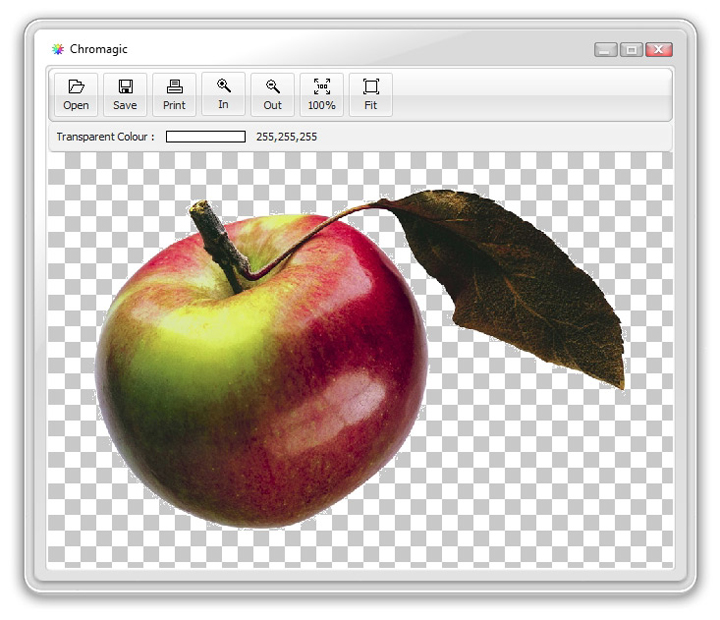
If you need to extract a single colour from an image background then it doesn't get much easier than this! Open a photo and click on the colour you want to extract and Chromagic will automatically make it transparent. If you need to extract more colours then click and hold the mouse button while you move over the image.
Load *.jpg, *.jp2, *.png, *.gif, *.psd, *.tif, *.pcx, *.bmp, *.wbmp,
*.tga, *.wmf, *.ico and *.cur format images. Save in *.png, *.gif or
*.psd formats, with transparency intact.
Works best with backgrounds that have very little colour variation. This software is not ideal for removing complex photographic backgrounds. It is aimed at simple (limited) colour removal from photos with a basic flat backdrop. Think of the "green screen" backgrounds used on TV weather programs, which makes it easier to extract from the person standing in front, in order to replace with a more complex background behind.
Works best with backgrounds that have very little colour variation. This software is not ideal for removing complex photographic backgrounds. It is aimed at simple (limited) colour removal from photos with a basic flat backdrop. Think of the "green screen" backgrounds used on TV weather programs, which makes it easier to extract from the person standing in front, in order to replace with a more complex background behind.
System Requirements
- Windows 7, 8, 10 or 11
- 2GB of RAM minimum
- 4.69MB of hard disk space
- 800 x 600 screen resolution
FREE Download
This product is FREEWARE. You may download it and use for both personal and commercial work, without any charge.

Installation
1. Unzip the Chromagic.zip file above to a suitable folder on your hard drive, for example... C:\Cybia\Chromagic.
2. Manually create a link (if needed) in your Start Menu or on your Desktop and click on the Chromagic.exe link to run the program.
Using the Software
Click on the Open button to load a suitable photo, then click anywhere on the image to choose a colour. Chromagic will automatically make that colour a transparent area.
If you need to extend the range then hold down the mouse button while you move over the image to select more colours.
You can save the final image file with transparency intact (in *.png, *.gif or *.psd formats), or print directly from the application (transparent areas will show as white in the print).
You can save the final image file with transparency intact (in *.png, *.gif or *.psd formats), or print directly from the application (transparent areas will show as white in the print).

If you have any questions then please use the Contact Form to get in touch, thanks!